MyEd Logging In

MyEducation BC (MyED) is the student information system used by schools in the Sea to Sky School District. It is the system used by all schools to track and report on all students in the province.
MyED offers a full array of features for families and is mobile-friendly – allowing administrators, teachers, and parents to use a computer, a smartphone, or an iPad. One of these features is the Parent (Family) Portal.
In the Parent (Family) Portal, parents/guardians with an account can View/Save/Print their student(s) Report Cards.
Individuals will receive their login name (username) and temporary password from their district.
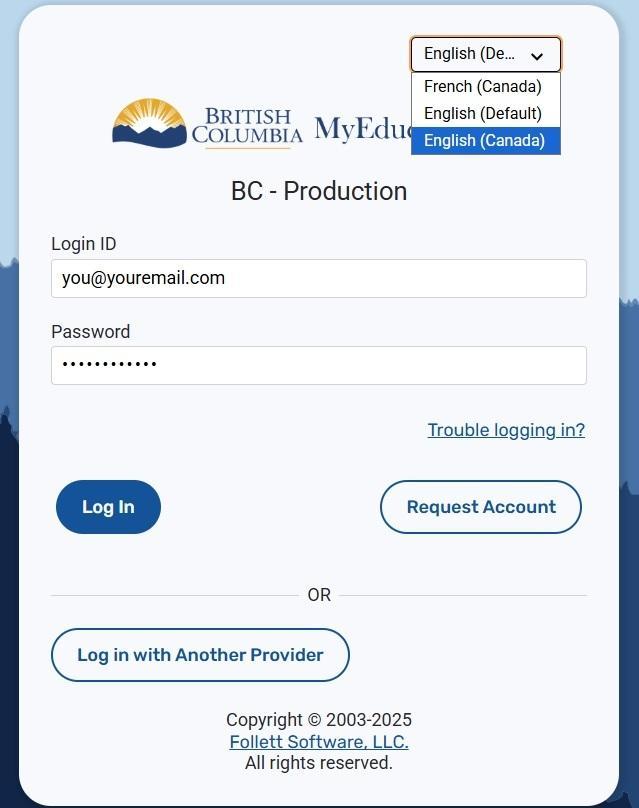
Go to https://www.myeducation.gov.bc.ca/aspen
Enter the username and temporary password in the Login screen, and click Log In:
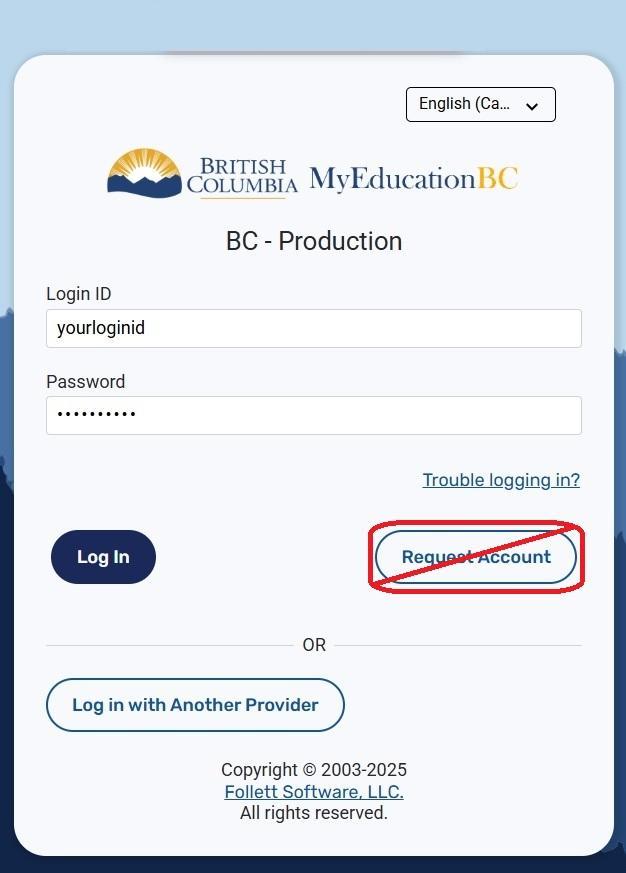
Please do not select "Request Account". We do not create accounts using this method.
On initial login, users will be required to change the temporary password before they can proceed. Passwords must meet the following criteria:
- Minimum length is 8
- At least one number
- At least one capital and lowercase letter
- At least one symbol that isn't a letter or number
- Cannot contain "password", login name, first name, middle name, last name, date of birth, personal id, or only sequential letters or numbers
Enter the following information in the Change Password pop-up that displays next:
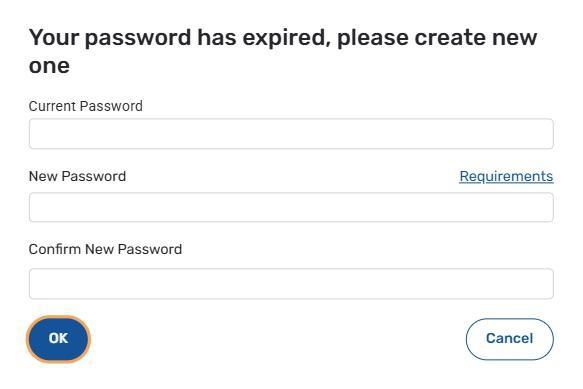
- Current Password – enter the assigned temporary password
- New Password – enter the new user created password
- Confirm New Password – enter the new user created password a second time
Click OK
The Security Preferences Update pop-up window opens next. Setting security preferences will make it possible for a user to use the Reset your password option that displays on the "Trouble Logging In?" screen. Enter the following information:
Primary email - confirm or enter the user email that will be used for password recovery
Security question – select a question from the dropdown list
Security answer – enter the answer to the selected question
Confirm answer – enter the answer to the selected security question a second time
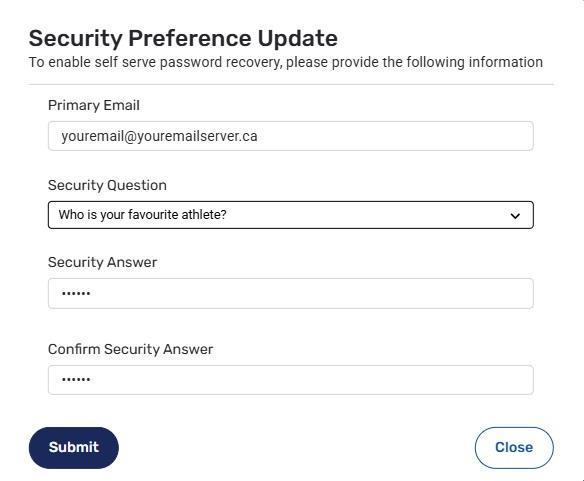
Click Submit
Users can now set their preferred language on the Login pop-up. The change is applied immediately across MyEducation BC. Please select either English or French.